
Step to add new property and units
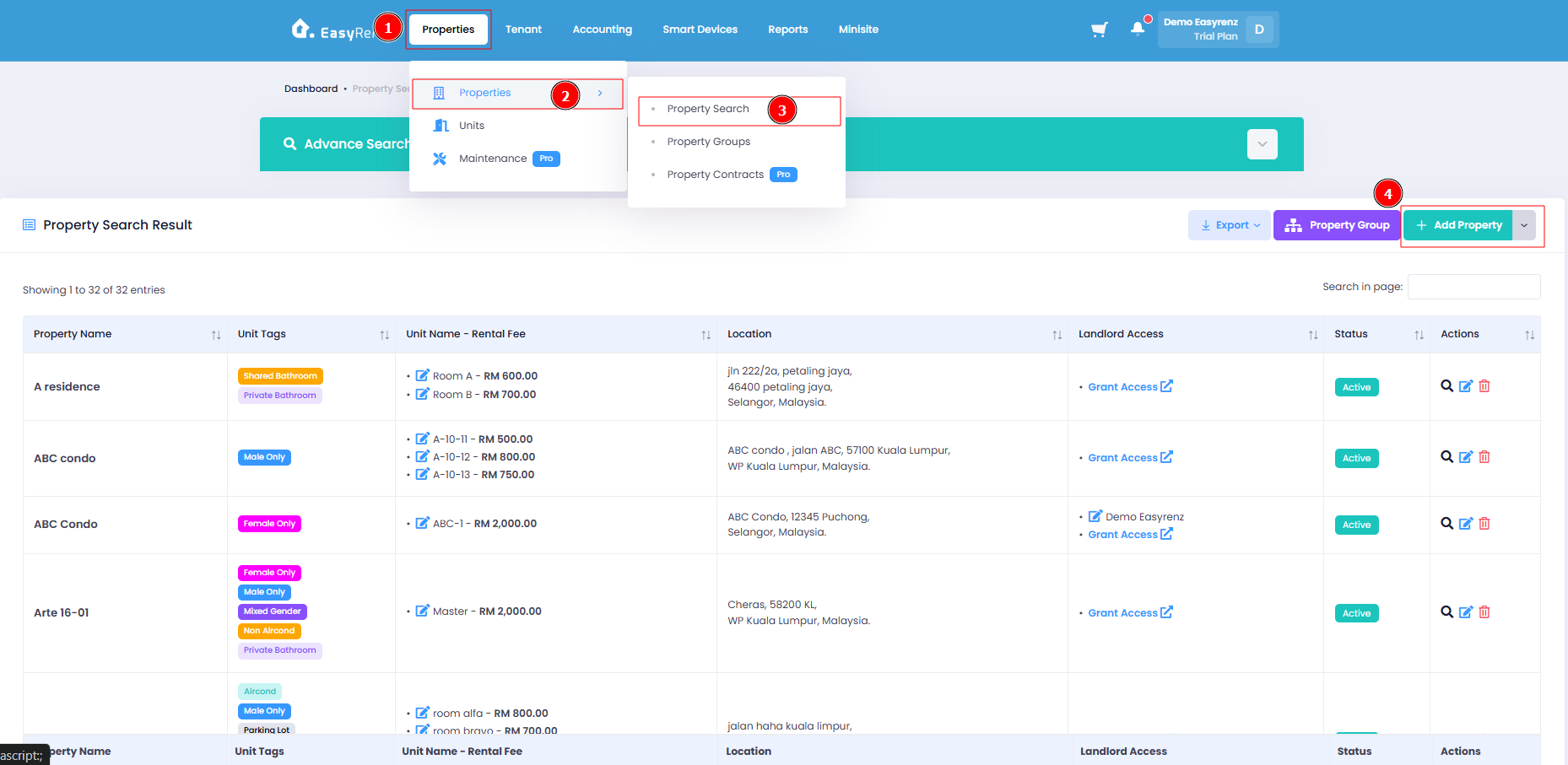
Step 1: Go to Properties > Property Search > Add Property
Step 2: Fill up the property details.
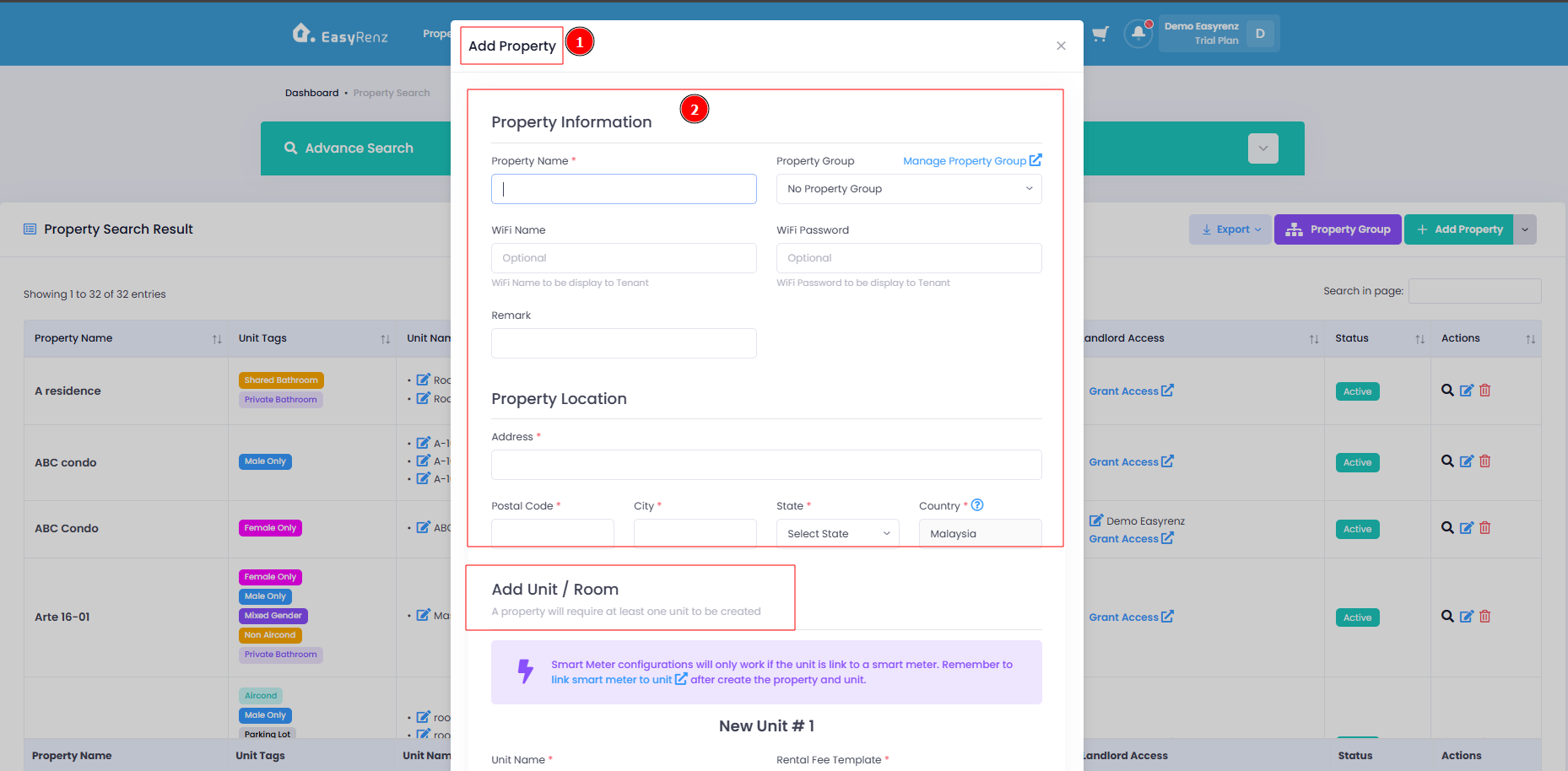
Step 3: Scroll down and add in units under the property.
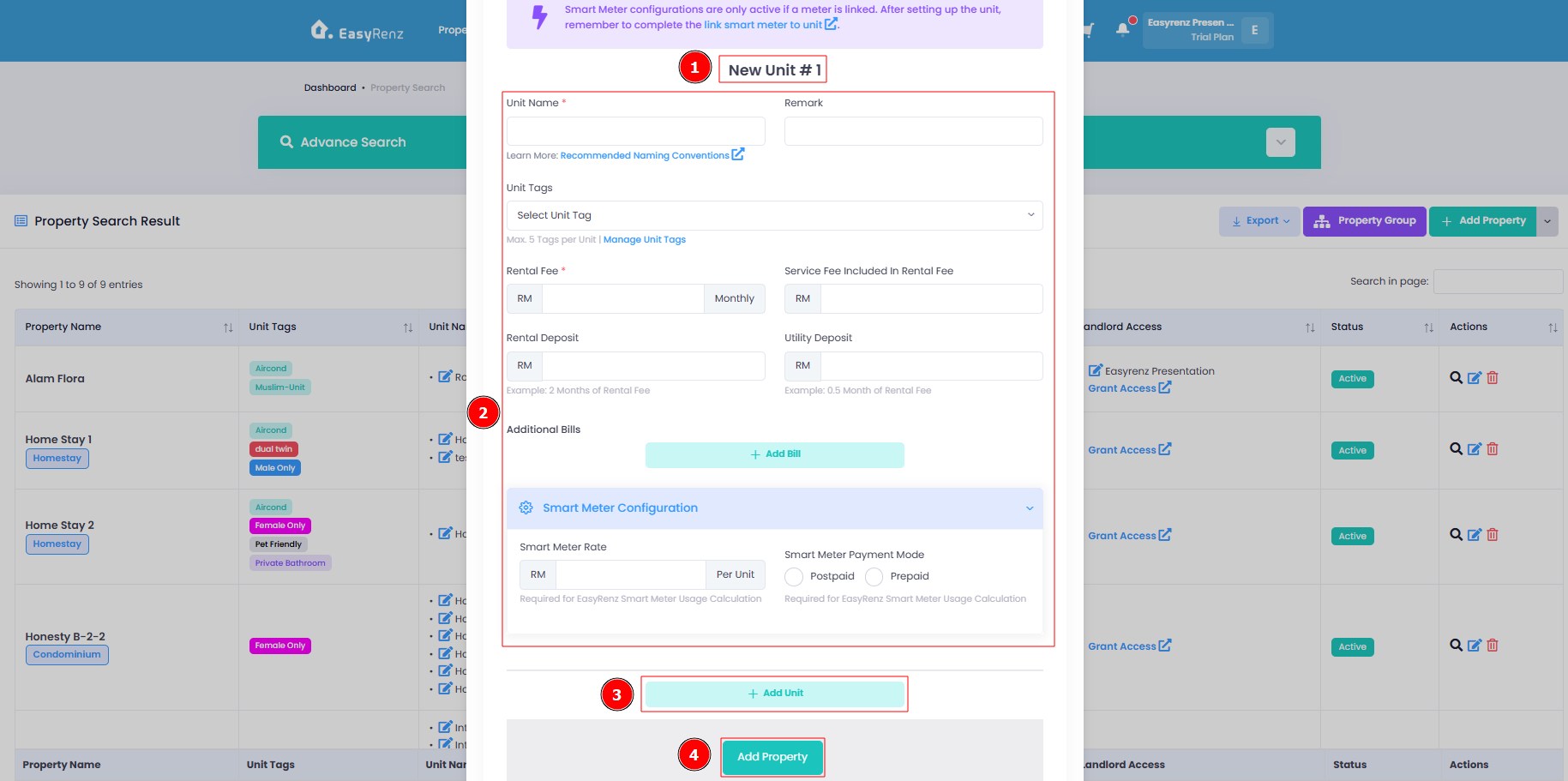
Your Property and Units has been created successfully.
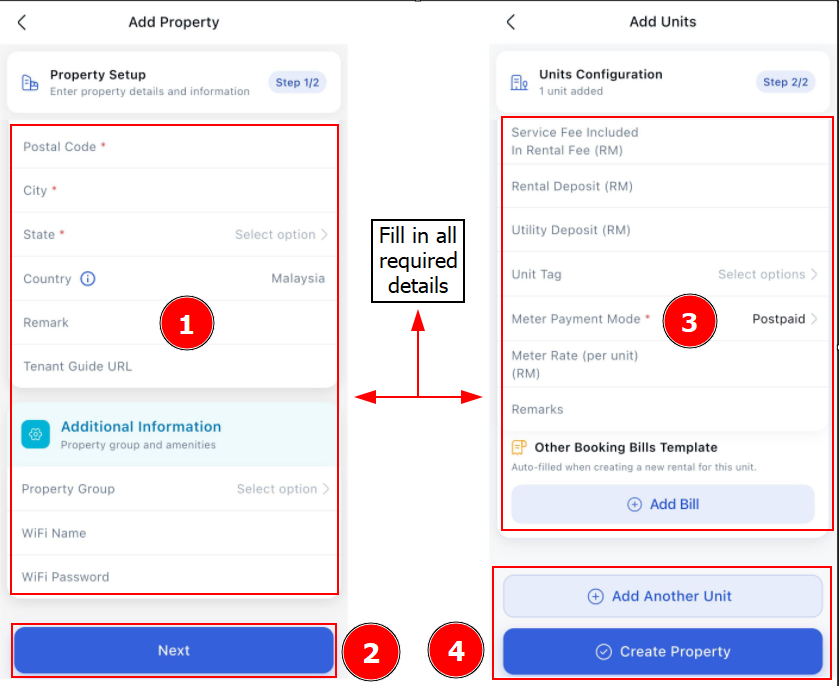
[Mobile Version] Step to add new property and units
Step 1: Click Property > Plus Button
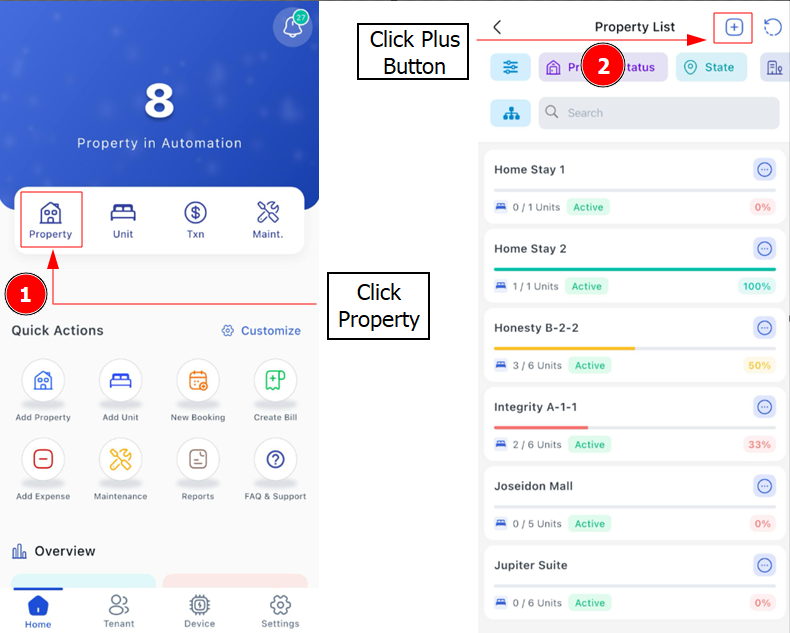
Step 3: Fill in the Property Details > Next > Fill in the Unit Details > Click Add Another Unit if you got another unit to add > Create Property
Suggested Naming Conventions for Unit Names
Example 1: If a property has 3 rooms and 1 parking space, with each room rented to a different tenant, create 4 separate units.
Property Name: Nice Residency B-12-06
Unit Name 1: NR B-12-06 R1
Unit Name 2: NR B-12-06 R2
Unit Name 3: NR B-12-06 R3
Car Park 1: NR B-12-06 CP1
Example 2: If a property has 3 rooms, each with 2 beds rented separately (for a total of 6 beds), add 6 units to manage each tenant individually. This ensures precise tenant management.
Property Name: Nice Residency B-12-06
Unit Name 1 - Tenant A: NR B-12-06 R1A
Unit Name 1 - Tenant B: NR B-12-06 R1B
Unit Name 2 - Tenant A: NR B-12-06 R2A
Unit Name 2 - Tenant B: NR B-12-06 R2B
Unit Name 3 - Tenant A: NR B-12-06 R3A
Unit Name 3 - Tenant B: NR B-12-06 R3B
Example 3: If the entire property is rented to a single tenant, add it as one unit.
Property Name: Nice Residency B-12-06
Unit Name: NR B-12-06
Getting Started - Next Topic
(Optional) Link smart meter to units - [Smart Meters - General] How To Link Smart Meter To Unit ?