3 Ways to generate bill to tenant:
Auto Generated Bills
Manual Bill Generation
Bulk Generate Bill
Recurring Generated Bills
[Web Version] Steps To Add A Bill To Tenant
1) Auto Generated Bill
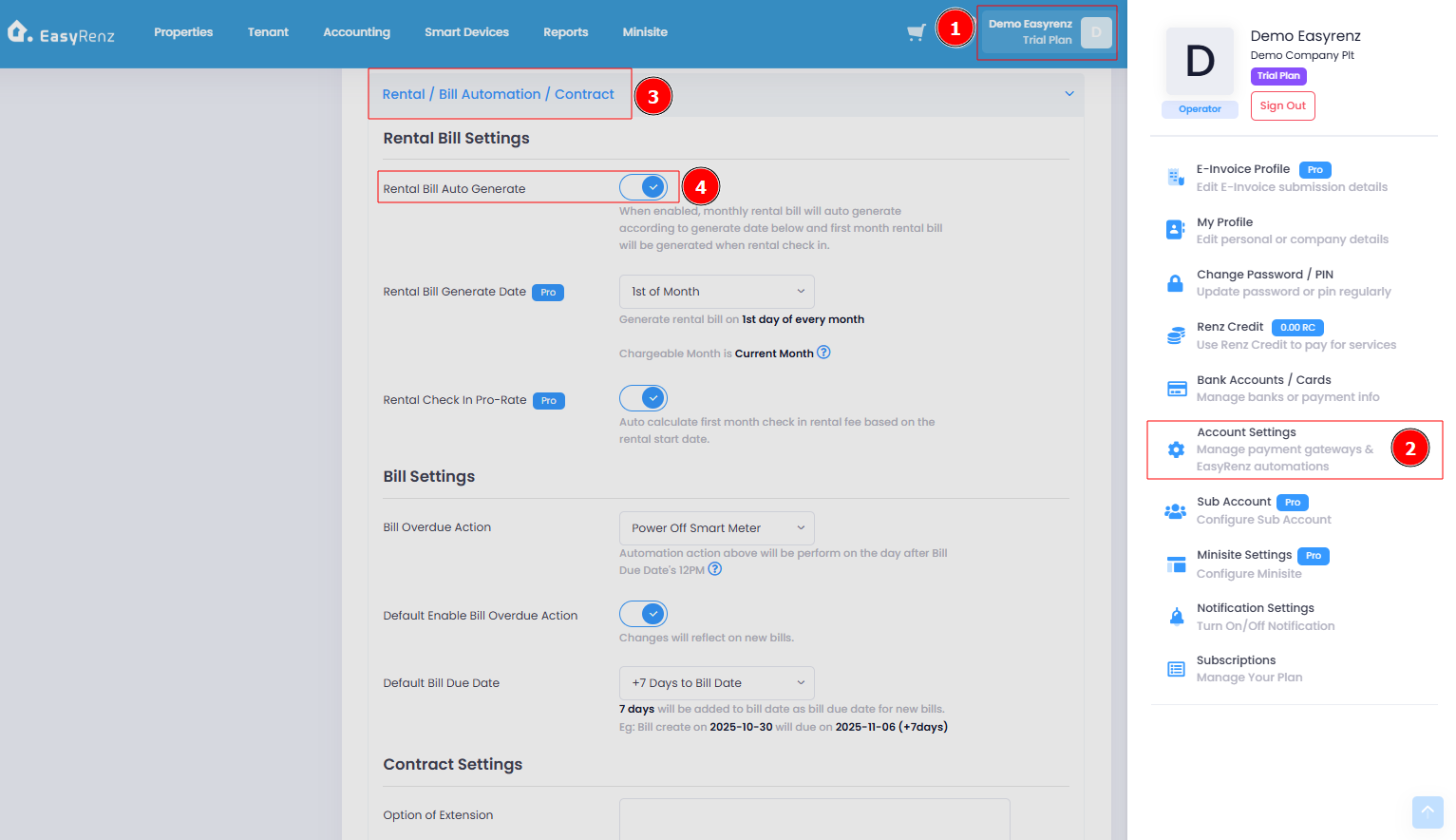
Step 1 : Click on Profile > Account Settings
Step 2 : Turn On Rental Bill Auto Generate setting and adjust Rental Bill Generate Date to your own preference.
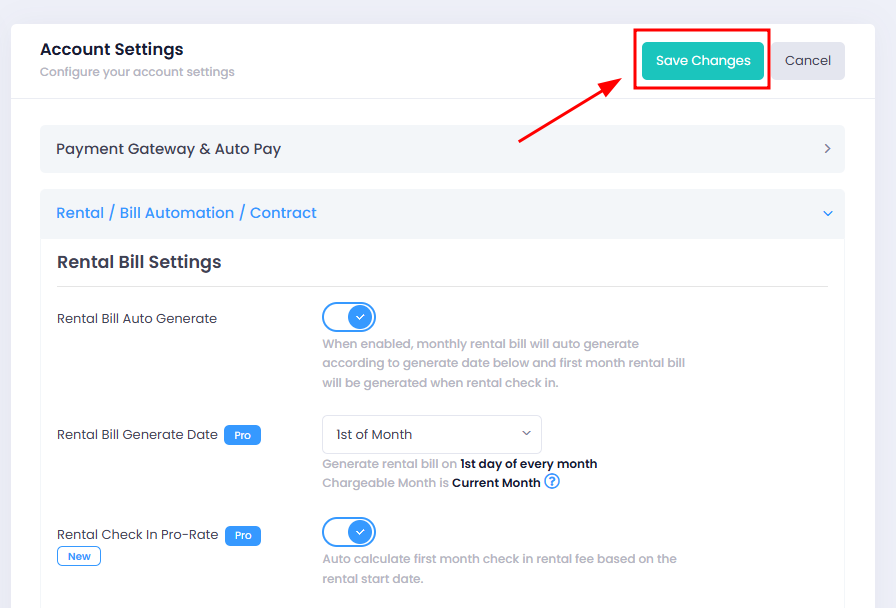
Step 3: Click on the green Save Changes button at the top of the page to save the changes.
Once enabled, rental bills will be automatically generated for tenants who are in "Occupied" status and within the active rental period.
2) Manual Bill Generation
Step 1: Go to Accounting > Bills > Add Bill
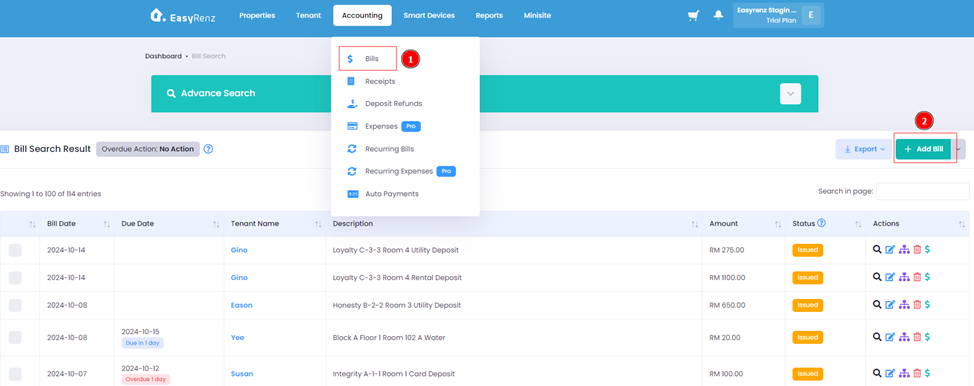
Step 2: Fill in Details > Add another Bill (If applicable) > Add Bill button.
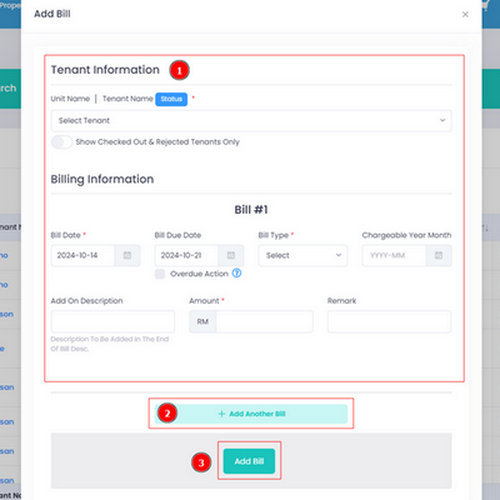
You have successfully added bill(s) to tenant
3) Bulk Generate Bill
Step 1: Go to Accounting > Bills > Click the drop down menu > Bulk Add Bill
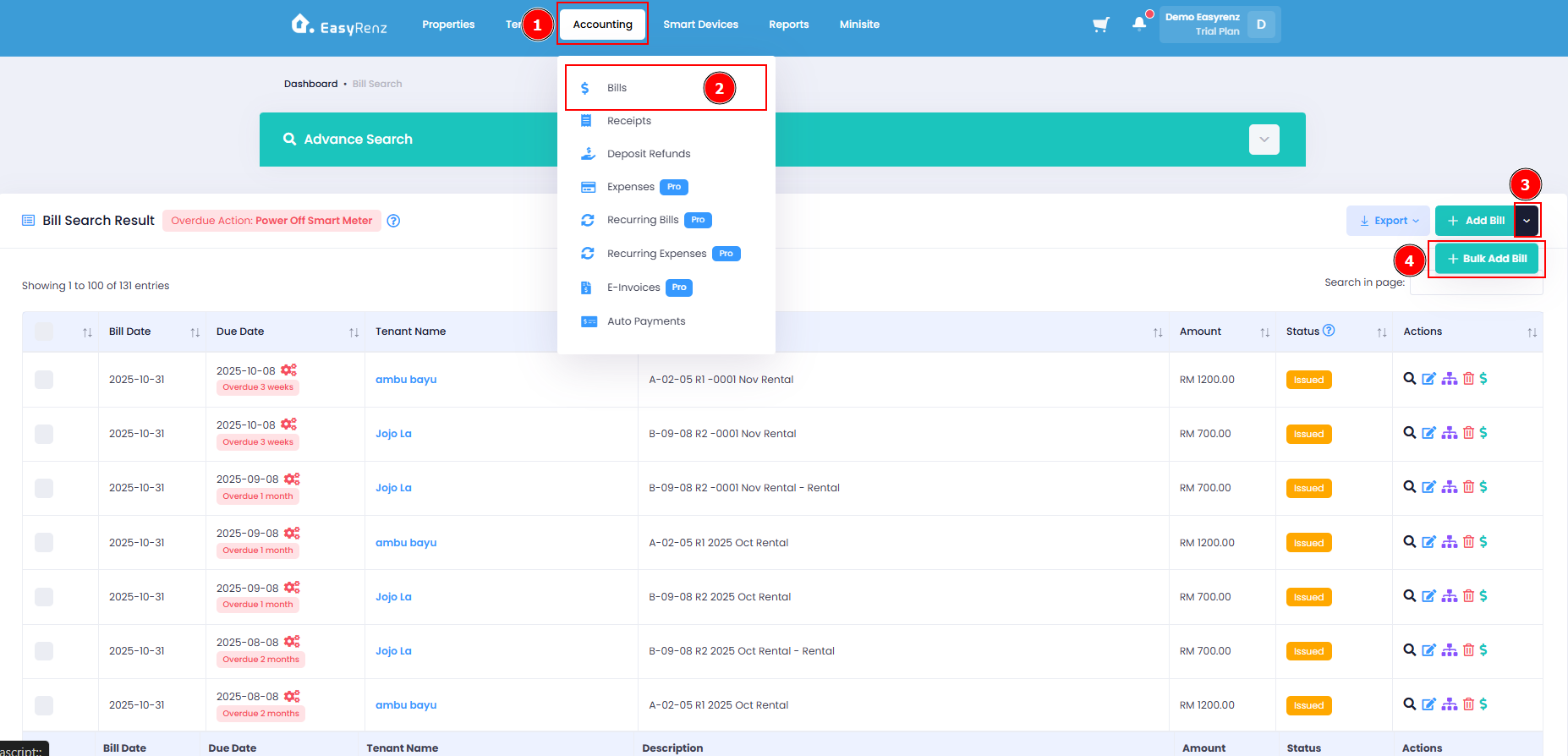
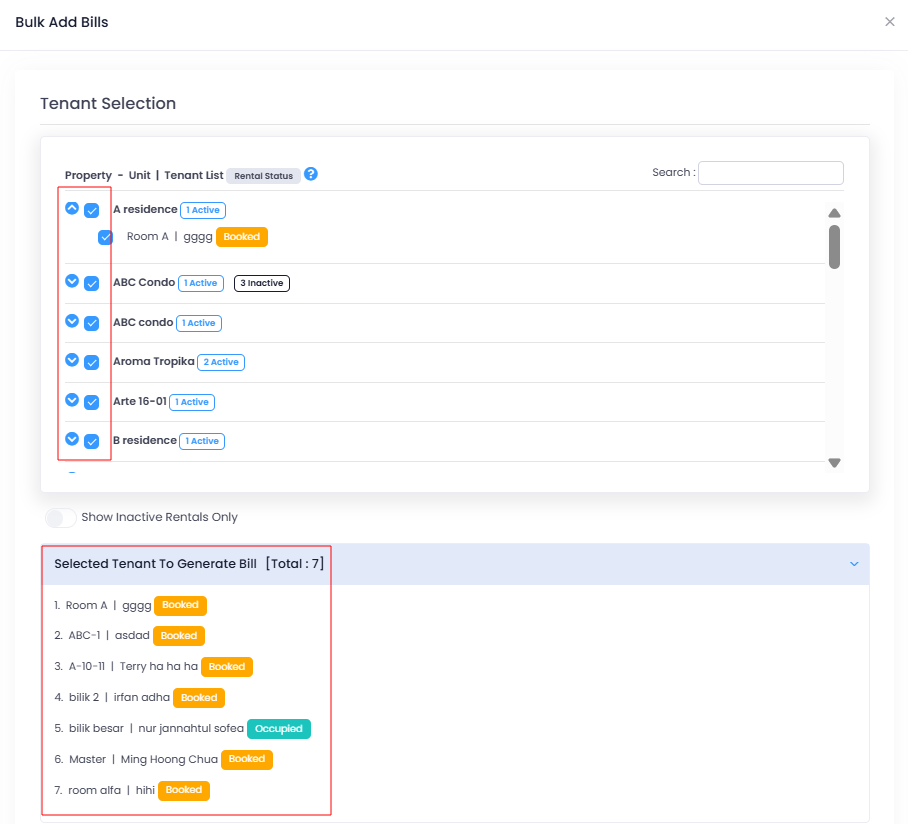
Step 2: Select Tenants > Review Selected Tenant.
Step 3: Billing Information > Bulk Add Bill
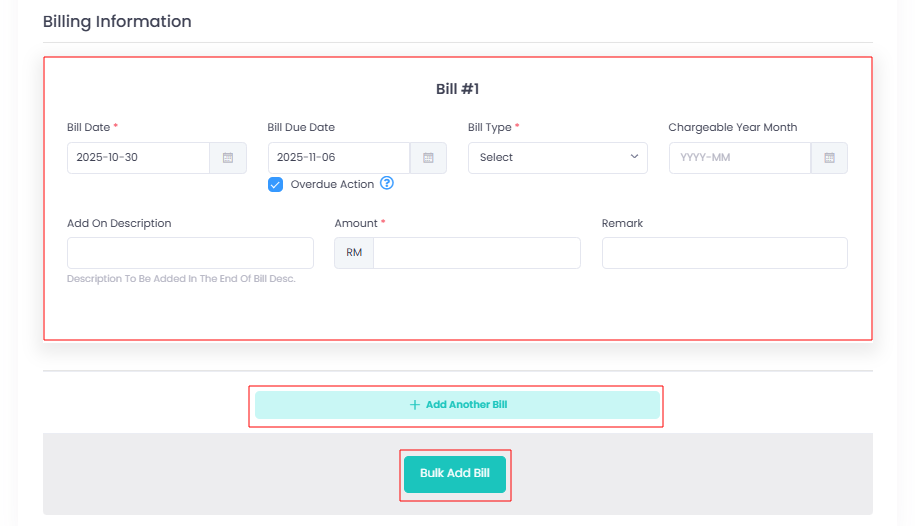
You have successfully bulk add bills to tenant.
4) Recurring Generated Bill
Learn how to create recurring bills : [Bills, Invoices & Receipts] How To Create Recurring Bill ?
[Mobile Version] Steps To Add A Bill To Tenant
1) Auto Generated Bill
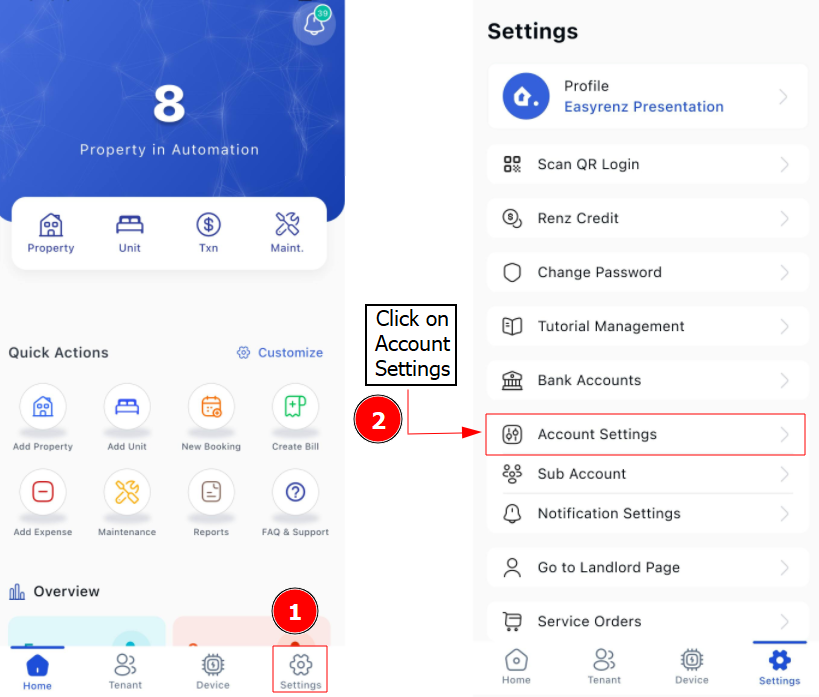
Step 1 : Click Settings > Account Settings
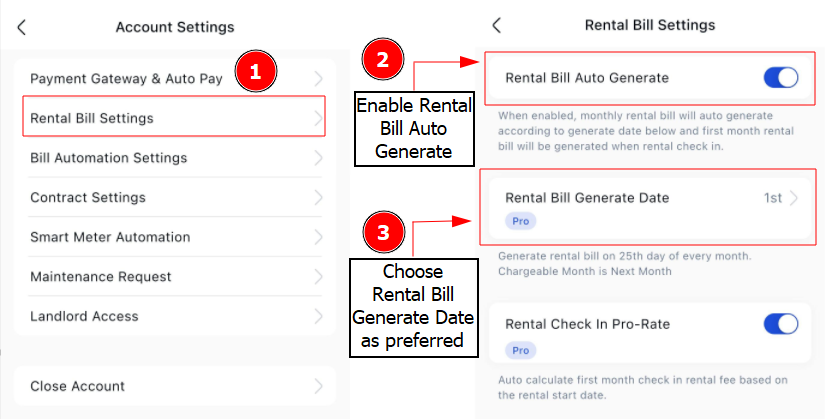
Step 2 : Rental Bill Settings > Turn On Rental Bill Auto Generate settings and choose Rental Bill Generate Date to your own preference.
2) Manual Bill Generation
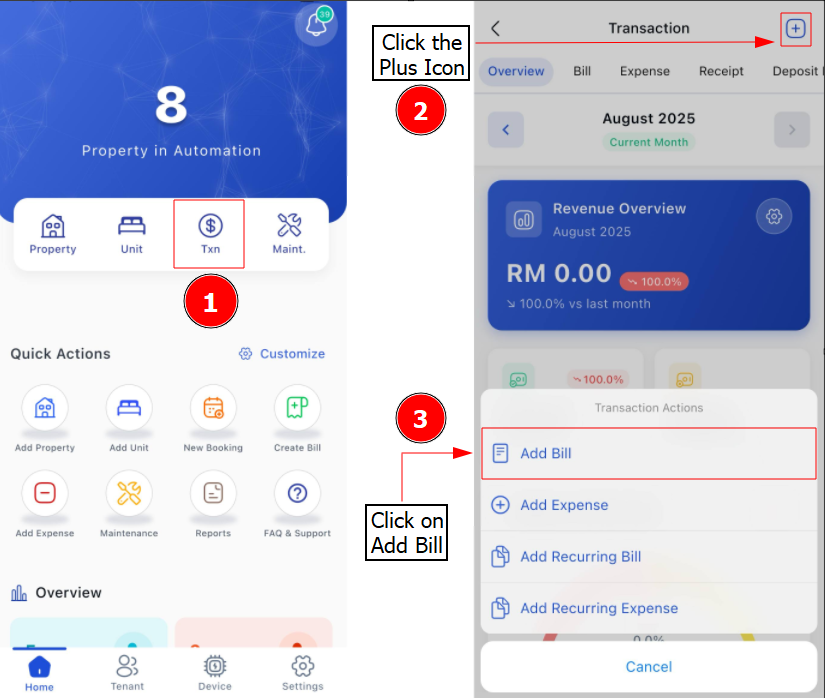
Step 1 : Click on Txn (Transaction) > Plus Icon > Add Bill
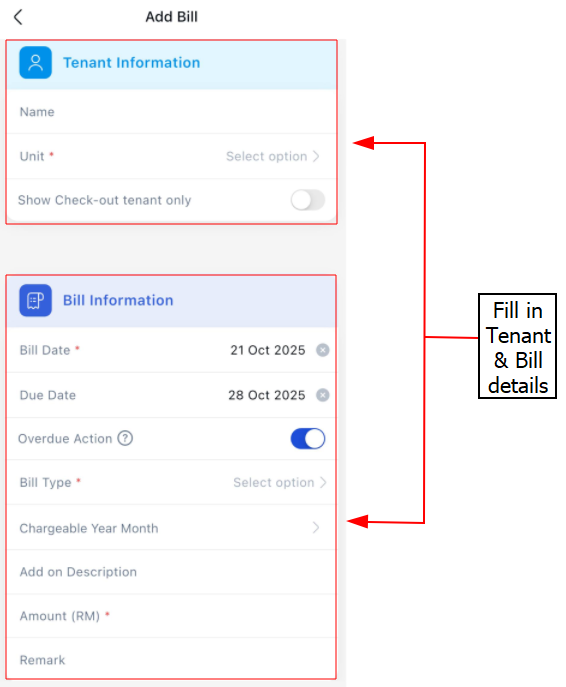
Step 2 : Fill in Tenant & Bill Information > Add