
Steps to add a new booking
You will be able to create a new booking along with tenant account.
Step 1: Click Tenant > Active Tenants > New Booking > Fill in required fields

Step 2: Select Tenancy Period, Select Unit then confirm the Monthly Rental > Click Next
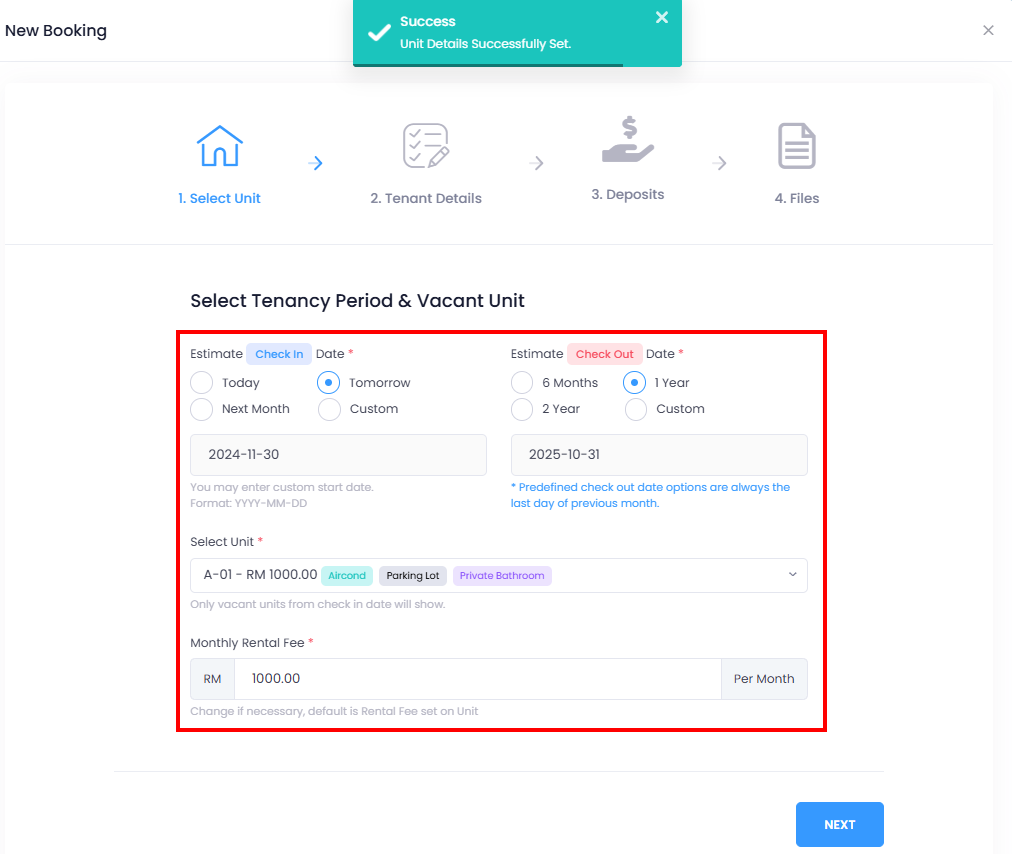
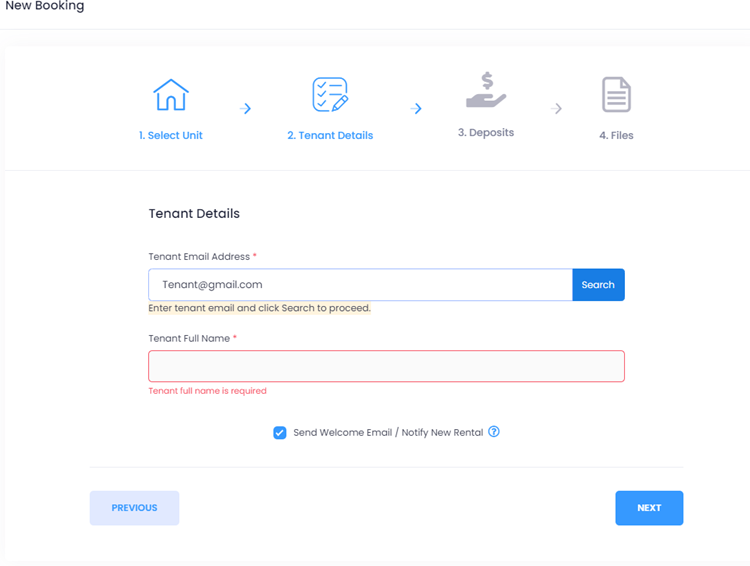
Step 3: Once you click Next > Fill in Tenant Email Address > click Search
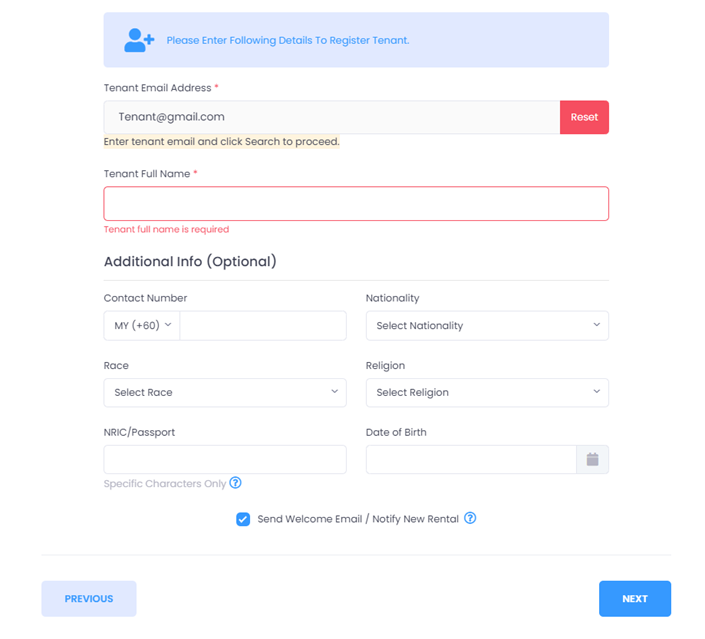
If the tenant’s email address is not registered, you will be ask to enter tenant details. This tenant will receive an welcome email to setup their account if you check the Send Welcome Email option.
You also can use existing tenant email address to create new booking.
*Tips: You can choose to not send welcome email / notify new rental, but send it later by Bulk Send Welcome Email feature. Please refer: [Bookings & Rentals] How can I bulk send welcome email .
Step 4: Fill up tenant’s information accordingly. (**Only for new tenant) > then click Next
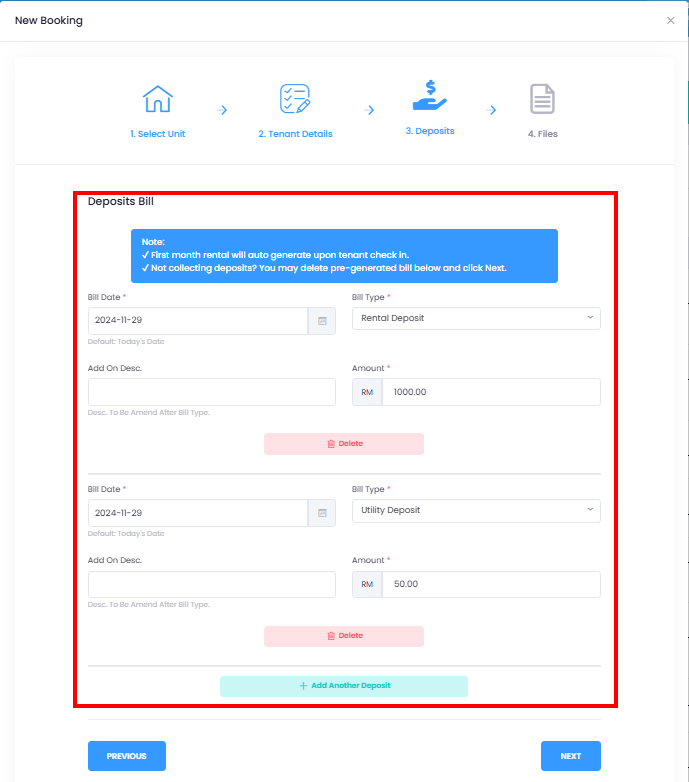
Step 5: Complete the third section (Deposit). If no deposit is required, simply remove the deposit details, then click "Next".
Step 6: You can optionally attach files, such as an identity card and supporting documents, then click "Book Unit" to complete the booking.
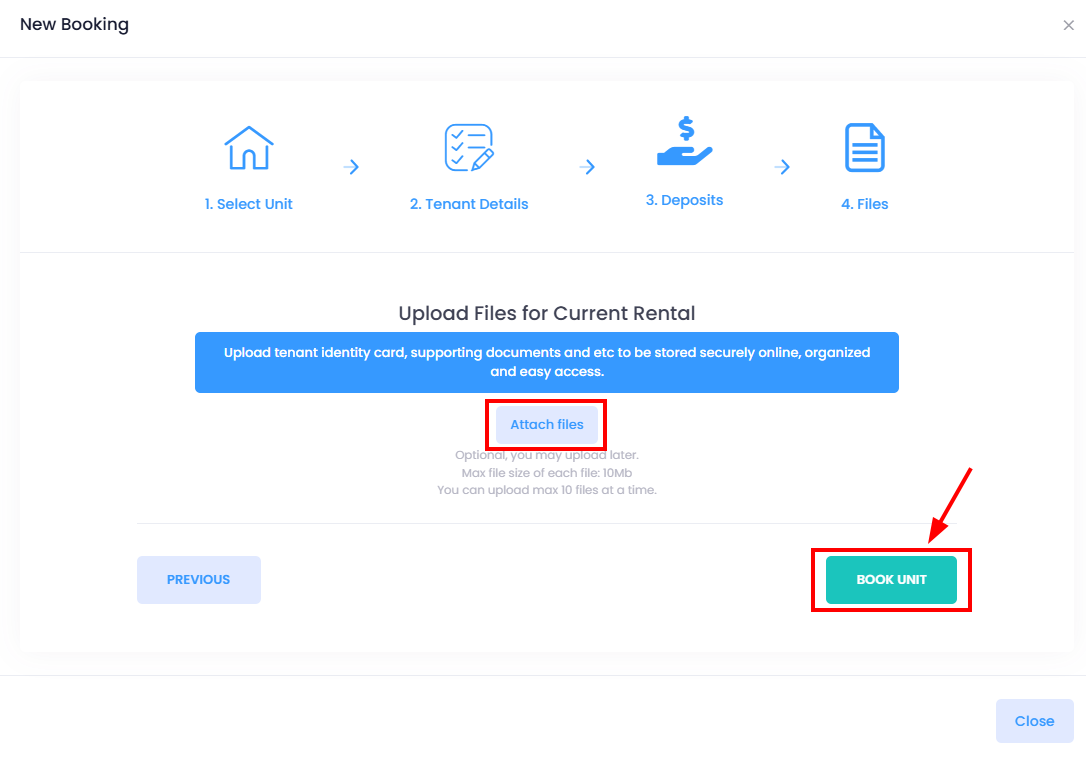
You have successfully added a new booking for a tenant.
The tenant will receive a welcome email from EasyRenz, allowing them to set up their password and access their account, provided you chose to send the welcome email earlier.
[Mobile Version] Steps to add a new booking
Step 1: Tap Tenant > Tap Plus Icon> New Booking
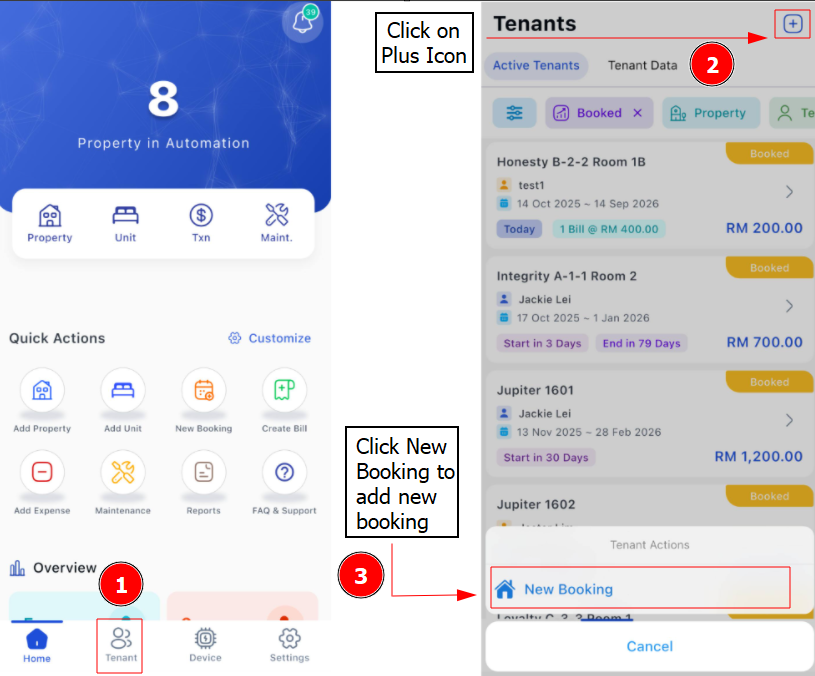
Step 2: Complete the details > Fill in tenant’s email address > Enable "Send Welcome Email"
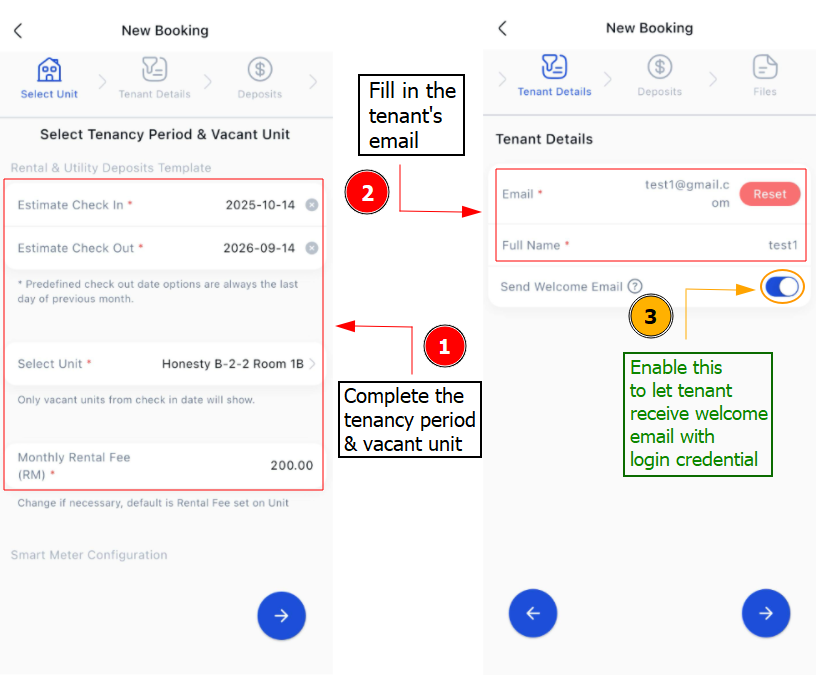
If the tenant has already been registered in EasyRenz system, their details will be displayed after tapping search.
If not, you will need to register the tenant and fill in their details before proceeding.
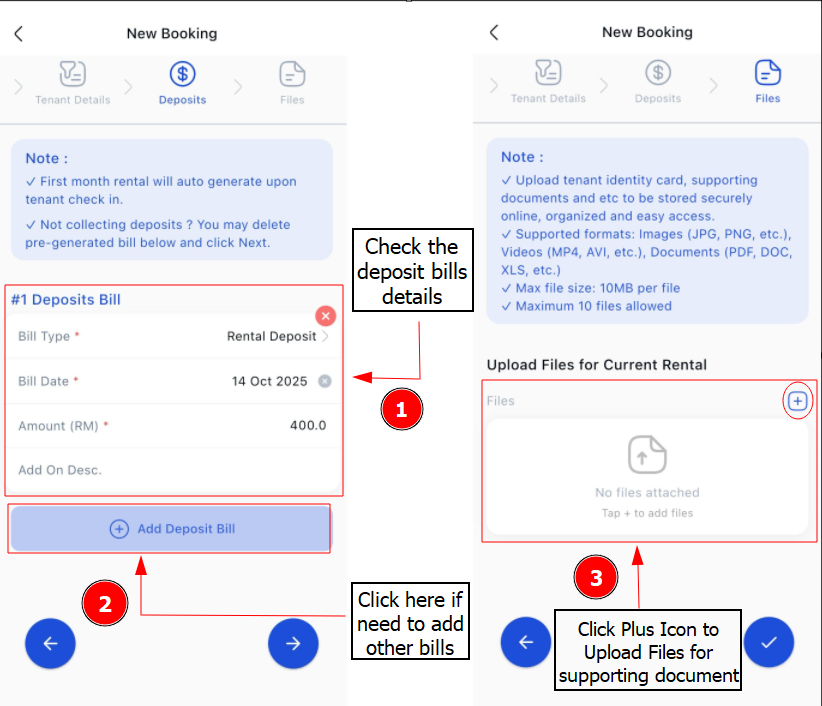
Step 3: Check the bills details > Click Plus Icon to upload files for supporting documents > Click Right Button
Getting Started - Next Topic
Record tenant's payment (Such as deposit) - [Bills, Invoices & Receipts] How To Manually Record Payment ?