
This feature only available on EasyRenz Mobile Apps.
Please make sure your mobile phone is connected to 2.4Ghz WiFi signal before pairing Bluetooth Gateway.
Step 1: If your Bluetooth Gateway is On, please power off and on the Bluetooth Gateway, or power on your Bluetooth Gateway.
Wait until the Gateway light is blinking blue and red, it is ready for configuration.
Step 2: Launch EasyRenz App, Go to Device > Lock Gateway > Plus Button > Add Gateway
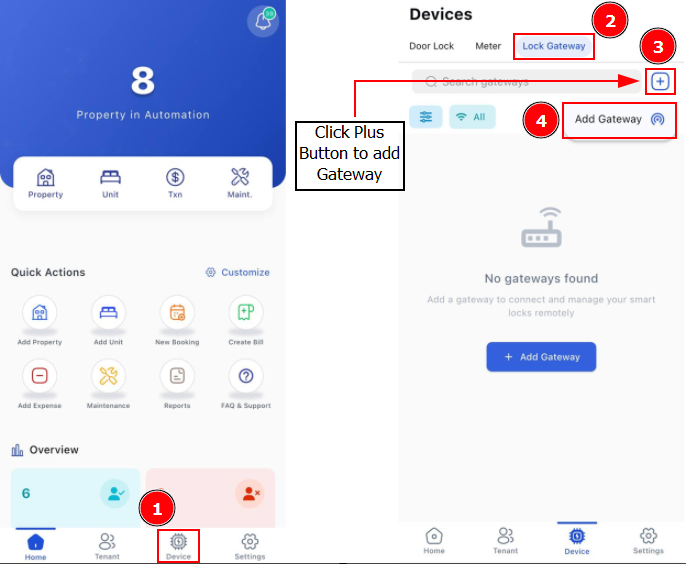
If the EasyRenz App asks for location or device discovery permissions, you need to allow them to add your device successfully.
Step 3: Click Scan > Wait for it to scan for available gateway > Select the gateway you would like to add > enter your WiFi password and Gateway Display Name.
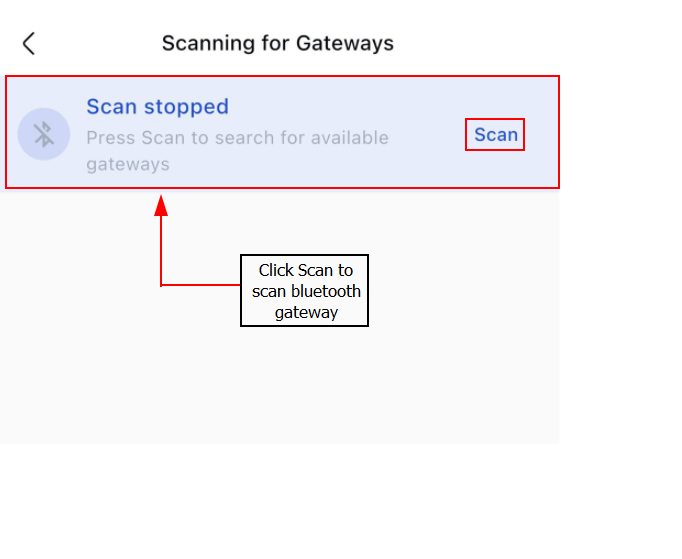
If your Gateway is added successfully, it will show a flashing blue light without flashing red.
If the pairing attempt fails, you can try again starting from step 1.
Step 5: To connect your lock to a gateway, simply activate the nearby smart door locks. You can activate a lock by placing your finger on the fingerprint sensor of the Smart Door Lock.
If the smart door lock does not connect to the gateway on the first attempt, you can try again.
Ensure that the Bluetooth gateway is powered on and its status light shows a flashing blue light without flashing red.
If the Bluetooth gateway is flashing blue and red, please return to Step 1 to set up your Bluetooth gateway.
Step 6: Select your added Bluetooth gateway > "Locks Nearby" to see the number of door locks is connected to gateway.