
Creating a deposit refund in EasyRenz is important for returning a tenant's deposit at the end of their tenancy.
The EasyRenz Deposit Refund module streamlines the refund process, minimizing errors to ensure accurate documentation and efficient management.
⚙️Create Deposit Refund / Transfer
The tenant will appear under Deposit Refunds once you "Check Out," "Delete," or "Reject" the rental.
The system will display all previous deposits and any outstanding bills (if applicable). You can manage deposit refunds based on the tenant's deposit history, ensuring accurate tracking of amounts to be refunded or withheld.
Step 1 : Go to Accounting > Deposit Refunds > Create Refund > Select Deposit Action Accordingly
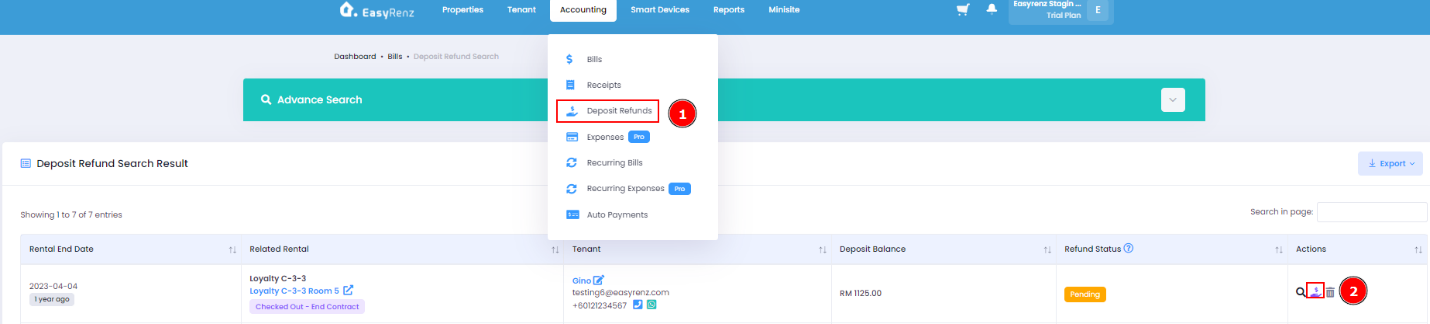
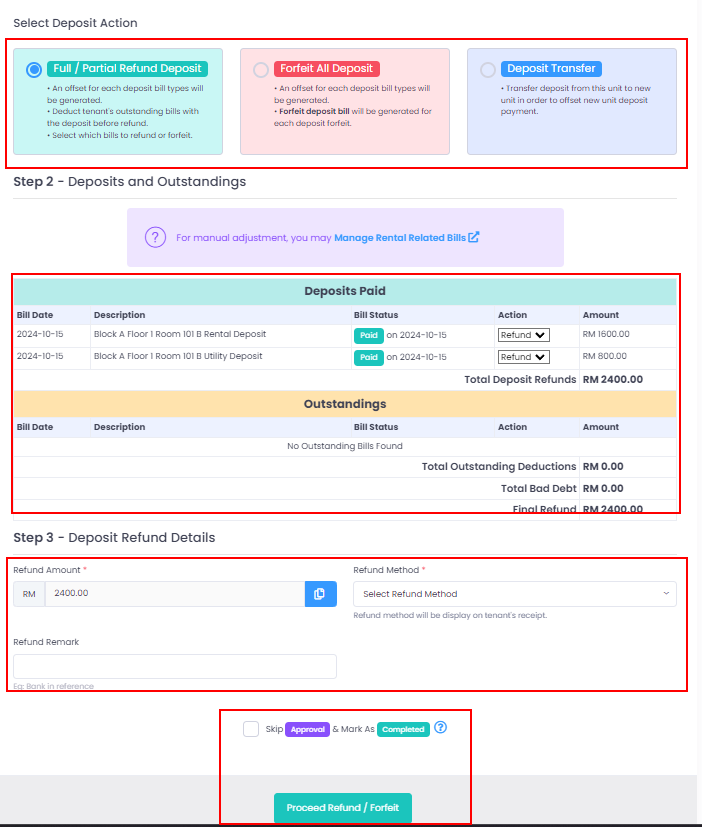
You have the following option when managing a deposit refund:
Full / Partial Refund Deposit: Refund the full deposit or choose specific bills to refund.
Forfeit All Deposit: To forfeit the entire deposit of the rental.
Deposit Transfer: If the tenant is moving to a different room, transfer the deposit to the new unit.
Selecting the "Deposit Transfer" option will generate a negative refund bill for the tenant's new rental, allowing them to offset the new deposit payment.
If the new rental deposit is lower than the transferred deposit, we recommend using the Split Bill feature. This lets you divide the transferred deposit into smaller amounts, allowing the tenant to apply the balance toward multiple payments.
Learn how to Split Bill > [Bills, Invoices & Receipts] How To Split Unpaid Bill ?
✅Review and Finalize
Check the total refund or forfeit amount.
Enter refund details & choose the refund method.
Tick Skip Approval & Mark as Complete if no approval is needed.
Usually, refunds are reviewed by management first, then processed by accounting, ensuring transparency and control. This feature helps streamline the deposit refund process.