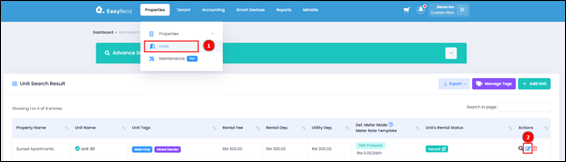
4.1 Go to ‘Unit Search’ page and edit the unit that you want to list on minisite.
4.2 Click on ‘Minisite Listing Details’ tab and fill up all the related data.
This section explains each minisite setting field and the type of data you need to fill in.
4.2.1 Fill In All the Fields Manually
💠 List On Minisite
This toggle controls whether this unit are being listed on your minisite or not.
💠 Booking Payment Calculation Method
Choose between ‘N Month of Rental Fee’ or ‘Fixed Amount’ calculation for the unit booking fee.
💠 Number of Months / Fixed Booking Amount
The amount based on previous selection.
💠 Minisite Min. Contract Months
This field determines the minimum stay period of the unit. This field will control the booking & rentals end date when user filling up booking form.
💠 Minisite Unit Built Up Sqft.
The unit’s area, in square feet unit measurement.
💠 Minisite Description
The data entered in this field, including empty spaces and line breaks, will be displayed on the unit’s listing page in the minisite.
💠 Unit Amenities
Check the amenities that suits your unit’s listing.
4.2.2 Copy From Your Existing Unit Listing Details
💠 This function can be found on top of the form.
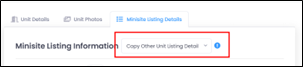
💠 Only the unit that has minisite description will be shown in the dropdown list.
💠 Only unit’s minisite listing details are being copied, unit photo will not be copied. You will still need to review / upload the unit photos.
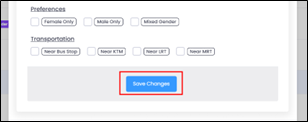
4.3 Click on ‘Save Changes’ button at the end of form to save the unit’s listing data.