
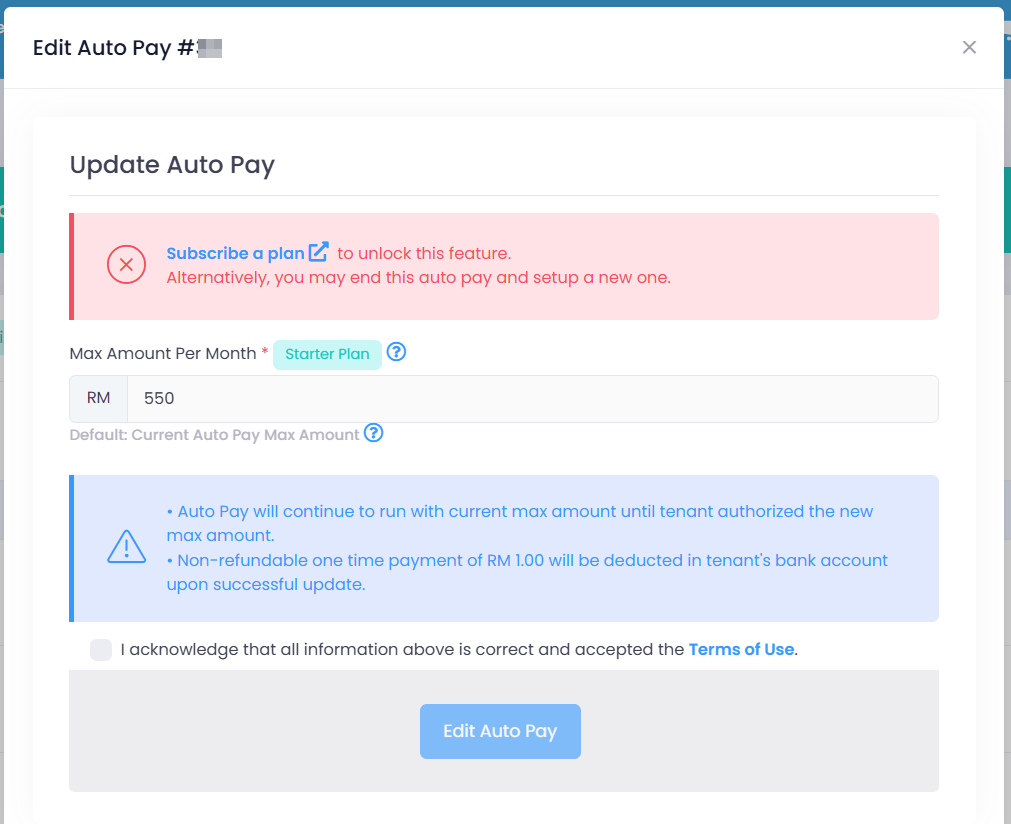
This feature requires an active subscription.
Steps to edit auto pay limit for tenant
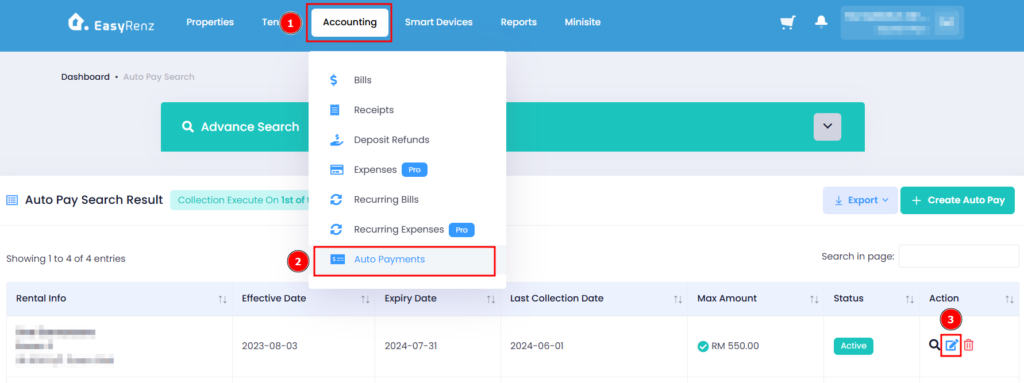
Step 1: Go to Accounting > Auto Payments > Search for tenant that you wish to edit the auto pay limit > Click on the Edit Icon
Step 2: Change the limit > Select Terms of Use > Click on the Edit Auto Pay button to complete editing.
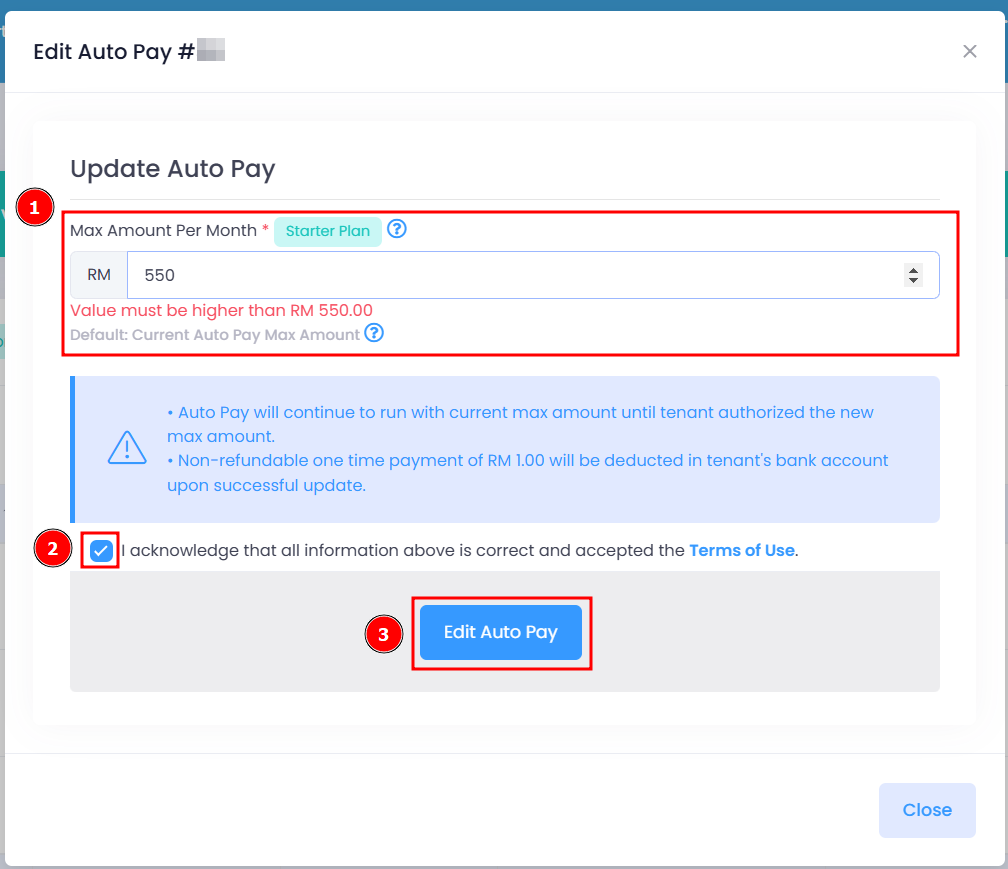
You have successfully edit auto pay limit for a tenant.
Without an active subscription, you will see the interface shown below and unable to change the Auto Pay limit.
Why I cannot edit auto pay limit for tenant ?
If there is no edit icon for that tenant, it means the auto payment status is either pending authorization from the tenant or the auto payment has ended.
1) If the auto payment status is pending, we recommend deleting the existing auto payment and creating a new auto payment for the tenant.
2) If the auto payment status has ended, you can create a new auto payment for that tenant.